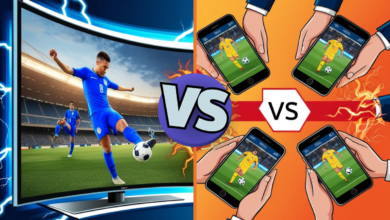

We spend hours staring at a 6-inch glass rectangle, but our content deserves more space. Whether it’s an epic cinematic movie or a high-stakes mobile game, size matters. Your smartphone packs incredible processing power, stunning visuals, and access to virtually unlimited content, yet we’re confined to viewing it all on a pocket-sized screen that strains our eyes and limits our experience.
The landscape of mobile technology has shifted dramatically in recent years. We’ve moved from a “mobile-only” mindset to a “mobile-first, display-anywhere” philosophy. Your phone is no longer just a portable device—it’s become the central hub of your digital life, capable of powering experiences far beyond its physical dimensions. The question isn’t whether you should expand your viewing experience, but how.
In this comprehensive guide, we’ll prove that the era of small screens is over by showing you exactly how to make your phone a giant display using the latest tech innovations. From wireless casting to desktop workstations, we’ll explore every method to liberate your content from the confines of that tiny screen and transform your smartphone into a powerhouse for immersive entertainment and productivity.
Why the Shift? The Era of Small Screens is Over
The evolution of mobile content has fundamentally changed what we expect from our devices. Today’s smartphones can stream 4K HDR content, render console-quality graphics in mobile games, and process professional-grade video editing. This leap in capability has created a mismatch: we have cinema-quality content trapped in a palm-sized display. High-end mobile gaming with titles like Genshin Impact and Call of Duty Mobile demands a larger canvas to appreciate the intricate details and immersive environments developers have crafted.
Beyond entertainment, there’s a significant psychological impact to consider. Studies show that immersive viewing on larger screens reduces eye strain, improves focus, and enhances information retention compared to squinting at handheld devices for extended periods. When you mirror phone screen to TV or expand to a monitor, you’re not just increasing size—you’re fundamentally improving your relationship with digital content.
The era of small screens is over because it’s become a productivity necessity, not just a luxury. Remote workers need proper screen real estate for video conferences and document editing. Content creators require accurate color representation on larger displays. Even casual users find that turning their phone into a big screen transforms everyday activities like recipe following, online doctor consultations, and family video calls into more comfortable, engaging experiences.
Wireless Mastery: Mirroring Your Screen Effortlessly
Miracast and AirPlay: Built-In Protocols for Seamless Connectivity
Modern smartphones come equipped with powerful wireless display protocols that require zero additional hardware. For Android users, Miracast creates a direct peer-to-peer connection between your phone and compatible smart TVs, essentially making your phone a giant display without routing through your home network. Apple’s AirPlay offers similar functionality for iPhone users, with even tighter integration across the Apple ecosystem.
The beauty of these built-in solutions lies in their simplicity. Navigate to your phone’s display settings, tap the screen mirroring or cast option, select your compatible TV from the list, and within seconds your content appears on the big screen. No apps to download, no complicated setup processes—just instant expansion of your viewing space.
The Power of Chromecast: Bridging Your Pocket to Your Living Room
Google’s Chromecast ecosystem represents perhaps the most versatile approach to wireless screen expansion. This affordable dongle transforms any HDMI-equipped display into a smart receiver for your phone’s content. Unlike simple mirroring, Chromecast apps often stream directly from the cloud, freeing your phone for other tasks while your show continues on the TV.
The true power emerges when you consider the vast library of Chromecast-enabled apps. Netflix, YouTube, Spotify, and thousands of other applications integrate native casting features that deliver superior quality compared to basic screen mirroring. Your phone becomes a sophisticated remote control while the heavy lifting happens in the cloud and on your TV.
Pro Tip: Optimizing your Wi-Fi connection is crucial for lag-free wireless display. Switch your router to the 5GHz frequency band for devices in the same room, as it offers significantly higher bandwidth and reduced interference compared to the crowded 2.4GHz spectrum. Position your router centrally, minimize physical obstacles between devices, and ensure your phone and display are connected to the same network for optimal performance.
Wired Solutions: For the Zero-Latency Enthusiasts
Sometimes cables are king, especially when you demand absolute perfection in your display experience. USB-C to HDMI adapters provide a direct digital connection that eliminates the compression, latency, and potential quality degradation inherent in wireless solutions. For anyone serious about how to make your phone a giant display with zero compromise, wired connections deliver flawless 4K output at 60Hz with no stuttering or buffering.
Gamers and creative professionals particularly appreciate wired setups because every millisecond matters. Competitive mobile gaming requires instantaneous response times—wireless lag of even 50-100 milliseconds can mean the difference between victory and defeat. Similarly, video editors and graphic designers need accurate real-time preview of their work without any artifacts or delays that wireless transmission might introduce.
Before purchasing adapters, verify your phone’s capabilities. Not all USB-C ports are created equal. Phones with Thunderbolt 3 support offer superior bandwidth and can drive multiple 4K displays simultaneously, while standard USB-C with DisplayPort alternate mode handles single display output beautifully. Check your device specifications and match them with appropriate adapters—many phones from Samsung, Google, and OnePlus support video output, though budget models may lack this feature.
Beyond TVs: Portable Projectors and AR Glasses
The rise of pocket projectors has revolutionized how we think about screen size. Modern LED and laser projectors smaller than a water bottle can transform any blank wall into a 120-inch cinema. Companies like Anker, XGIMI, and Samsung produce portable projectors with native phone connectivity via wireless protocols or USB-C. Imagine turning your hotel room, camping tent, or backyard into an instant movie theater—this is how the era of small screens is over in its most dramatic form.
These portable projectors have evolved beyond simple novelty devices. Current models offer 1080p resolution, built-in batteries for truly wireless operation, and brightness levels sufficient for viewing in moderately lit environments. The best part? Your phone serves as both the content source and the remote control, creating an all-in-one entertainment system that fits in a backpack.
Looking toward the future, augmented reality glasses represent the ultimate untethering of display from physical device. Products like Nreal Air, Rokid Max, and Xreal Beam create virtual displays that appear to float in your field of vision, equivalent to viewing a 200-inch screen from across a room. These AR glasses connect directly to your phone via USB-C, offering a completely private, portable giant screen experience. Hardware innovations like these prove that we’re detaching the interface from the physical device entirely—your phone processes the content while specialized displays project it wherever you look.
Turning Your Phone into a Desktop PC
Perhaps the most impressive transformation comes from features like Samsung DeX and Motorola Ready For, which convert your smartphone into a full desktop computing experience. Connect your phone to a monitor, add a Bluetooth keyboard and mouse, and suddenly you’re working with a proper computer interface—complete with windowed multitasking, desktop-class browsing, and productivity app layouts optimized for large screens.
Samsung DeX has matured into a genuinely capable desktop environment. Your phone becomes the CPU and storage, while the monitor simply displays the interface. You can drag and drop files between windows, run multiple apps simultaneously in resizable windows, and even connect to external storage drives. For many users, this setup eliminates the need for a separate laptop, especially when combined with cloud-based productivity tools like Microsoft 365 or Google Workspace.
The era of small screens is over: how to make your phone a giant display extends far beyond entertainment into genuine productivity. Remote workers can maintain a full desktop setup at home, then disconnect and carry that same computing power in their pocket to coffee shops or co-working spaces. Students can take notes on their phone during class, then connect to a larger display for essay writing and research. The boundary between “mobile device” and “computer” has effectively dissolved.
Top Apps to Enhance Your Large Screen Experience
Optimized Viewing Applications
Not all apps handle the transition to large screens gracefully. Fortunately, several applications are specifically designed or optimized for expanded displays:
VLC Media Player remains the gold standard for video playback, supporting virtually every format while offering granular control over aspect ratios, subtitles, and playback speed. When casting or mirroring, VLC ensures your content fills the entire screen appropriately.
Plex transforms your phone into a media server remote, organizing your personal video library with beautiful interfaces designed for TV viewing. Its casting capabilities are among the most reliable and high-quality available.
Google Home serves as command center for all Chromecast devices, offering quick access to casting controls and compatible apps.
AllCast and LocalCast provide universal casting solutions when apps lack native support, though quality varies by source material.
Solving Aspect Ratio Challenges
One common frustration when expanding your phone display is content that doesn’t fill the screen properly—black bars on the sides or stretched images that look distorted. Most modern smart TVs include zoom and fit options in their picture settings that can adjust content to fill the screen. On your phone, apps like Video Resizer can pre-process content to match your display’s aspect ratio before casting.
For gaming, many titles now include “external display” options in their graphics settings that optimize the interface when connected to larger screens, hiding mobile UI elements and expanding the field of view for a more immersive experience.
Three Key Considerations
Performance optimization makes or breaks your expanded display experience. Close unnecessary background apps before casting to free up processing power and bandwidth. Enable high-performance or gaming mode on your phone to prevent throttling during extended sessions. Keep both your phone and casting device firmware updated to benefit from the latest performance improvements and bug fixes.
Audio synchronization often gets overlooked until you experience the annoying lag between video and sound. When using wireless display methods, connect Bluetooth headphones directly to your phone rather than the TV to eliminate audio delay. Alternatively, use your TV’s speakers and adjust audio delay settings in your phone’s developer options to compensate for processing lag.
Battery management becomes critical during extended casting sessions. Wireless display protocols drain battery rapidly as your phone constantly transmits video data. Keep your phone plugged into a charger during long viewing sessions, and consider enabling battery saver modes that reduce background processes without affecting display output. Wired connections naturally keep your phone charged while providing video output through the same cable.
Essential Setup Steps
- Verify compatibility between your phone and target display before purchasing any adapters or accessories. Check manufacturer websites for specific model support lists.
- Update all firmware on your phone, TV, and any intermediate devices like Chromecast or streaming sticks to ensure optimal compatibility and performance.
- Configure network settings by assigning static IP addresses to frequently used devices, disabling VPNs during casting, and prioritizing media devices in your router’s Quality of Service settings.
- Test different methods to find what works best for your specific use case—wireless for convenience, wired for performance, or desktop modes for productivity.
- Create dedicated profiles on your phone for different display scenarios, using automation apps like Tasker to automatically adjust settings when connecting to specific displays.
Feature Comparison
• Wireless Mirroring (Miracast/AirPlay): Offers maximum convenience with no cables required, perfect for casual viewing and spontaneous sharing. Moderate quality with slight latency makes it suitable for video streaming but less ideal for gaming or precise work. Works with most modern smart TVs without additional hardware.
• Chromecast Casting: Provides superior quality to basic mirroring since content streams from the cloud rather than your phone. Excellent for entertainment apps with native support. Your phone remains free for other tasks while content plays on the TV. Requires compatible apps and stable internet connection for best results.
• Wired USB-C to HDMI: Delivers absolute best quality with zero latency, supporting full 4K 60Hz output for gaming and professional work. Requires compatible phone hardware and physical connection, reducing mobility. Charges your phone while connected, making it ideal for extended sessions at a desk or entertainment center.
Note: When choosing your display expansion method, consider your primary use case—entertainment favors wireless convenience, gaming demands wired precision, and productivity benefits from desktop mode features. Most users find that owning adapters for multiple scenarios provides maximum flexibility.
Compatibility and Performance Table
| Connection Method | Max Resolution | Latency | Battery Impact | Best Use Case |
|---|---|---|---|---|
| Miracast/AirPlay | 1080p-4K | 50-150ms | High | Casual video streaming, presentations |
| Chromecast | 4K HDR | 30-100ms | Medium | Entertainment apps, streaming services |
| USB-C to HDMI | 4K 60Hz | 0-5ms | Charges device | Gaming, professional work, desktop mode |
| Portable Projector | 720p-1080p | Varies | High | Travel entertainment, outdoor viewing |
| AR Glasses | 1080p per eye | 10-30ms | Medium-High | Private viewing, travel, multitasking |
Frequently Asked Questions
Does mirroring my screen drain the battery quickly?
Yes, screen mirroring is one of the most battery-intensive activities your phone can perform. Wireless protocols like Miracast require your phone to encode video in real-time, maintain a constant Wi-Fi connection, and transmit large amounts of data continuously. Expect your battery to drain 2-3 times faster than normal use. Always keep your phone connected to a charger during extended mirroring sessions, or opt for wired USB-C connections that simultaneously provide power while transmitting video.
Can I use my phone for other tasks while casting?
It depends on the casting method. With Chromecast and similar protocols that stream directly from apps, your phone remains fully functional—you can browse the web, check messages, or even turn off the screen while content continues playing on your TV. However, with screen mirroring protocols like Miracast or AirPlay, whatever appears on your phone displays on the larger screen, limiting your ability to multitask privately. Some apps offer “picture-in-picture” compromises, but true independent operation requires casting rather than mirroring.
What is the best resolution I can achieve when making my phone a giant display?
Resolution depends on multiple factors: your phone’s capabilities, connection method, and display device. Most modern flagship smartphones support 4K output via USB-C to HDMI connections, with some even supporting 4K at 60Hz for smooth motion. Wireless methods typically max out at 1080p or 4K 30Hz due to bandwidth limitations, though Wi-Fi 6 is improving these limits. Your phone must have hardware support for video output—check specifications before assuming compatibility. Premium phones from Samsung, Google, Apple, and OnePlus generally offer the best output quality.
[shurtcut_custom_here url=”https://zcink.com/dawloand/ text=”Download links”]
Conclusion
The boundary between mobile and desktop computing, between pocket entertainment and cinema experience, is disappearing before our eyes. Your smartphone is no longer constrained by its physical dimensions—it’s a powerful engine capable of driving massive visual experiences that rival dedicated computers and entertainment systems. Whether you choose wireless convenience, wired precision, or futuristic AR solutions, the technology exists today to liberate your content from that tiny screen.
We’ve explored how to turn your phone into a big screen through multiple approaches, each suited to different needs and scenarios. From casting your favorite shows on the living room TV to transforming your device into a complete desktop workstation, the era of small screens is genuinely over. The only question remaining is which method resonates with your lifestyle and needs.
Embrace the big picture—literally. Your phone contains more computing power than the systems that sent humans to the moon, runs applications as sophisticated as desktop software, and connects to virtually unlimited entertainment and information. It deserves a display worthy of its capabilities. Stop squinting at that 6-inch screen and experience your digital life the way it was meant to be seen: large, immersive, and spectacular.