The Ultimate Guide to Choosing a Program to Share Your Phone Screen with Any Other Phone
watch

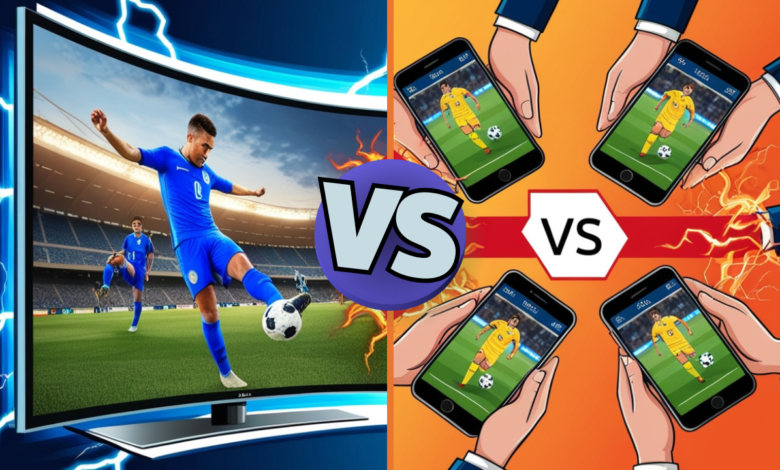
Imagine you’re trying to help your elderly parent troubleshoot a smartphone issue over the phone. You’re describing which buttons to tap, which menus to navigate, but the confusion only grows with each instruction. Or picture this: you’re working remotely and need to show a colleague a mobile app demonstration, but sending screenshots back and forth feels clunky and inefficient. These scenarios highlight the transformative power of screen sharing technology between mobile devices.
The ability to share your phone screen with another phone has evolved from a luxury feature to an essential tool for modern communication. Whether you’re providing remote technical support to family members, collaborating with teammates on mobile projects, or simply sharing vacation photos in real-time with friends, having the right program to share your phone screen with any other phone eliminates barriers and creates seamless visual connections. No more frustrating verbal descriptions, no more endless screenshot exchanges, just direct, real-time visual communication.
In this comprehensive guide, we’ll explore everything you need to know about phone screen sharing apps: why they’re indispensable, what features to prioritize, which applications lead the market, and how to use them safely and effectively. By the end, you’ll be equipped to choose the perfect mobile to mobile screen sharing solution that fits your specific needs, whether for personal assistance, professional collaboration, or entertainment purposes.
Why Use a Program to Share Your Phone Screen with Any Other Phone?
The Power of Remote Assistance
Remote technical support represents one of the most compelling use cases for screen sharing between phones. We’ve all experienced the frustration of trying to guide someone through technical problems using only verbal instructions. “Tap the settings icon” – but which settings? “Look for the blue button” – but where? The cognitive gap between what you see and what they see creates endless confusion and wasted time.
A program to share your phone screen with any other phone eliminates this communication barrier entirely. When you can see exactly what appears on their device, troubleshooting becomes exponentially easier and faster. You can identify problems immediately, guide them precisely to the correct options, and even watch them complete steps to ensure accuracy. For elderly parents struggling with smartphone technology, this capability is invaluable – transforming what might take 45 minutes of frustrating phone calls into a 5-minute screen sharing session.
The applications extend beyond family support. Small business owners can provide technical assistance to remote employees without expensive IT infrastructure. Freelancers can help clients navigate their deliverables. Teachers can assist students with educational apps. Customer support teams can resolve issues more efficiently, improving satisfaction while reducing support call duration. The ability to see and solve problems in real-time revolutionizes remote assistance across virtually every scenario.
Seamless Collaboration
Professional collaboration increasingly happens on mobile devices as smartphones become powerful enough to handle serious work. Mobile to mobile screen sharing enables new forms of productivity that were previously impossible. Picture brainstorming sessions where team members in different locations share design mockups directly from their phones, provide instant feedback on prototypes, or walk through mobile app functionality together.
Sales professionals benefit enormously from phone screen sharing apps. Imagine conducting a product demonstration where you share your screen to showcase a mobile app to a potential client viewing on their own phone. They see exactly what you see, you can highlight features in real-time, and answer questions while navigating the interface. This creates far more engaging presentations than static screenshots or recorded videos.
Content creators and social media managers use screen sharing to collaborate on posts, review content layouts, and troubleshoot publishing issues without being physically present. Photographers can share editing workflows on mobile editing apps with assistants or clients. The flexibility of mobile collaboration means productive work sessions can happen from anywhere – coffee shops, airports, or home offices – without requiring desktop computers or scheduled meetings.
Entertainment and Gaming
Screen sharing isn’t all business – entertainment represents a massive use case that brings joy and connection to millions. Mobile gamers use screen sharing to broadcast their gameplay to friends, showcasing high scores, demonstrating strategies, or simply sharing the excitement of gaming sessions. Instead of recording gameplay and sending videos later, real-time sharing creates immediate engagement and interaction.
Sharing photos and videos becomes more intimate and engaging through screen sharing. Rather than sending dozens of vacation photos through messaging apps where they get compressed and buried in chat history, you can walk friends or family through your entire album in real-time, narrating stories, answering questions, and reliving memories together. It recreates the experience of gathering around someone’s phone, but works across any distance.
Social viewing experiences represent another emerging entertainment use case. Friends separated by distance can watch videos together by sharing screens, creating synchronized viewing experiences with the intimacy of being in the same room. Couples in long-distance relationships share screens to watch content together, browse social media, or simply stay connected through visual sharing that feels more personal than traditional video calls.
Key Features to Look for in a Program to Share Your Phone Screen with Any Other Phone
Real-Time Performance and Low Latency
The quality of screen sharing hinges on performance metrics that determine whether the experience feels natural or frustratingly delayed. Latency – the delay between actions on the shared screen and their appearance on the viewing device – can make or break usability. Professional-grade applications maintain latency under 100 milliseconds, creating the illusion of instantaneous mirroring where taps, swipes, and navigation feel synchronized.
Frame rate similarly impacts user experience. Screen sharing at 15-20 frames per second feels choppy and disjointed, adequate for static content but terrible for demonstrating animations, games, or video playback. Premium applications achieve 30-60 frames per second, delivering smooth, fluid visuals that accurately represent the source device’s display. This becomes critical when sharing dynamic content or guiding someone through fast-paced actions.
Adaptive quality management separates excellent applications from mediocre ones. The best programs to share your phone screen with any other phone automatically adjust resolution and frame rate based on available bandwidth, maintaining the smoothest possible experience regardless of network conditions. When connection quality degrades, they prioritize responsiveness over visual clarity, ensuring the session remains usable rather than freezing or disconnecting entirely.
Cross-Platform Compatibility
One of the most frustrating limitations in mobile screen sharing is platform restrictions. Many early solutions only worked within specific ecosystems – Android to Android or iPhone to iPhone. Modern users demand flexibility to share screens across any device combination: Android to iPhone, iPhone to Android, and even mobile to desktop when needed.
True cross-platform compatibility means the application works identically regardless of operating system combinations. Features shouldn’t be restricted based on device pairings. An Android user should be able to share their screen to an iPhone user with the same quality, features, and ease as sharing to another Android device. This universal compatibility eliminates the frustrating scenario of choosing an application only to discover it won’t work with your intended recipient’s device.
Cross-platform support extends beyond operating systems to include different device generations and screen sizes. A phone screen sharing app should handle connections between the latest flagship devices and older budget phones, accommodating varying screen resolutions, processing capabilities, and network technologies. The best applications detect device capabilities and optimize accordingly, ensuring even mismatched device pairings deliver acceptable performance.
Privacy and Security
Sharing your screen inherently involves privacy considerations – you’re broadcasting everything visible on your display to another person’s device. Robust security features aren’t optional; they’re essential for protecting sensitive information, personal data, and private communications that might appear during a sharing session.
End-to-end encryption represents the security foundation for any reputable screen sharing application. This means data transmitted between devices is encrypted such that only the participating devices can decrypt it – even the application provider cannot see the shared content. Military-grade AES-256 encryption has become the standard, providing protection equivalent to that used by financial institutions and government agencies.
Session control features give users power over their privacy. Time-limited sessions that automatically expire prevent accidentally leaving connections open indefinitely. One-time access codes ensure each sharing session requires explicit permission rather than creating permanent access pathways. The ability to instantly terminate sessions with a single tap provides a critical emergency cutoff when you need to stop sharing immediately, whether due to an unexpected notification, incoming call, or realization that sensitive content is visible.
Top Recommendations: Finding the Best Program to Share Your Phone Screen with Any Other Phone
TeamViewer QuickSupport: Best for Professional Use
TeamViewer stands as an industry veteran, bringing decades of remote support experience to mobile screen sharing. Their QuickSupport application delivers enterprise-grade reliability, security, and feature richness that makes it the go-to choice for professional environments requiring consistent, high-quality remote assistance capabilities.
Strengths: Unmatched cross-platform support works seamlessly across Android, iOS, Windows, Mac, and Linux. The connection quality remains stable even on moderate internet connections thanks to sophisticated compression algorithms. Security features include two-factor authentication, session recording for compliance, and detailed connection logs. Remote control capabilities (on supported devices) allow the helper to actually control the shared device, not just view it – invaluable for providing hands-on assistance.
Considerations: The professional feature set comes with complexity that might overwhelm casual users. The free version limits session duration to 5 minutes, requiring a paid subscription ($49.90/month) for extended use. The interface, while powerful, feels more enterprise than consumer-friendly. For occasional personal use, simpler alternatives might be more appropriate.
Best For: IT professionals supporting remote teams, businesses providing customer technical support, anyone needing reliable, frequent screen sharing with advanced features like session recording and remote control.
AnyDesk: Best Balance of Power and Simplicity
AnyDesk has rapidly gained popularity by delivering professional-grade performance in a more accessible package. The application strikes an impressive balance between powerful capabilities and user-friendly design, making it suitable for both professional and personal use cases without the steep learning curve of more complex solutions.
Strengths: Exceptional performance with proprietary DeskRT codec delivering smooth, responsive screen sharing even on slower connections. Lightweight application doesn’t burden older devices. Free for personal use without annoying session limits. Intuitive interface makes establishing connections straightforward – share your address, recipient enters it, connection established. Optional features like file transfer enhance utility beyond pure screen sharing.
Considerations: iOS support is more limited than Android – iPhones can view shared screens but cannot share their own screens due to Apple’s restrictions. Remote control features are Android-only. Advanced security features like two-factor authentication require paid subscriptions.
Best For: Users wanting professional-quality screen sharing without complexity or cost, Android users needing frequent screen sharing for support or collaboration, anyone seeking a reliable solution for both personal and light professional use.
Google Meet: Best for Integrated Ecosystem Users
For users already embedded in Google’s ecosystem, Google Meet offers native screen sharing that integrates seamlessly with other Google services. While primarily positioned as a video conferencing platform, its screen sharing capabilities are surprisingly robust for mobile devices, and the zero-additional-setup for existing Google users makes it incredibly convenient.
Strengths: No additional software required if you already use Gmail or Google Workspace. Screen sharing works within video calls, allowing simultaneous face-to-face conversation and screen viewing. Free tier supports up to 100 participants and unlimited session duration. Excellent security through Google’s infrastructure. Native integration with Google Calendar, Drive, and other productivity tools.
Considerations: Requires both parties to have Google accounts and the Meet app installed. Screen sharing happens within video calls rather than dedicated sessions, consuming more bandwidth. Limited remote control capabilities – primarily viewing rather than interaction. Best suited for collaboration rather than technical support scenarios.
Best For: Teams already using Google Workspace, families coordinating around Google accounts, users prioritizing convenience over advanced features, collaborative sessions where face-to-face conversation accompanies screen viewing.
ApowerMirror: Best for Gaming and Entertainment
ApowerMirror specializes in high-performance screen mirroring optimized for entertainment use cases like gaming, video streaming, and media sharing. While capable of general screen sharing, its feature set clearly targets users prioritizing visual quality and smooth performance for dynamic content.
Strengths: Superior frame rates ideal for gaming and video content. Built-in screen recording lets you capture shared sessions. Drawing and annotation tools enable real-time markup during sharing. Supports both Wi-Fi and USB connections for maximum flexibility. Works across mobile devices, computers, and TVs.
Considerations: Focus on mirroring rather than remote control limits technical support applications. Free version includes watermarks and time restrictions. Premium subscription required for unlimited use ($29.95/year). Slightly higher battery consumption due to performance optimization.
Best For: Mobile gamers sharing gameplay, content creators demonstrating mobile apps, anyone prioritizing visual quality and smooth performance for entertainment rather than productivity.
Step-by-Step: How to Setup a Program to Share Your Phone Screen with Any Other Phone
Installation and Initial Configuration
Beginning your screen sharing journey starts with selecting and installing the appropriate application. Navigate to your device’s app store – Google Play for Android or Apple App Store for iOS – and search for your chosen application. Verify you’re downloading the legitimate version by checking the developer name, download counts, and user reviews. Fake or malicious apps sometimes mimic popular screen sharing applications, so this verification step protects your security.
After installation, the application typically requests various permissions: display capture (essential for screen sharing), network access (for transmitting data), and potentially microphone or camera access (if you want audio/video communication alongside screen sharing). Review these permission requests carefully – legitimate screen sharing apps need display and network permissions, but be skeptical if an app requests unrelated permissions like contacts or SMS access.
Create an account if the application requires one, or note your unique device ID if the app uses connectionless pairing. Strong, unique passwords are essential for account-based systems. Enable two-factor authentication if available – the additional security layer protects against unauthorized access to your screen sharing capabilities.
Establishing a Connection
Initiating a screen sharing session follows patterns similar across most applications, though specific mechanics vary. Generally, you’ll choose whether to share your screen (become the broadcaster) or view someone else’s screen (become the viewer). The sharing device generates an access code, session ID, or unique connection URL that must be communicated to the viewing device.
For Code-Based Systems: The sharing device displays a random alphanumeric code (typically 6-12 characters). Share this code with your recipient through a separate communication channel – text message, email, or voice call. The recipient enters this code in their app, establishing the connection. These codes usually expire after a few minutes for security, requiring fresh codes if the initial connection attempt fails.
For Account-Based Systems: Both users sign into their accounts. The sharer sends a connection invitation through the app to the viewer’s registered email or username. The viewer accepts the invitation, establishing a persistent connection capability. Future sessions don’t require new invitations – connections happen through the contact list.
For Link-Based Systems: The sharing device generates a unique URL. Sharing this link (via messaging, email, or any communication method) allows the recipient to join the session by clicking it, often without even needing the app installed for initial viewing in some cases.
1. Optimizing Quality for Your Connection
Screen sharing performance depends heavily on network conditions, and most quality applications provide settings to optimize the experience based on available bandwidth. Understanding these settings helps you balance visual quality against responsiveness and battery consumption.
Resolution Settings: Higher resolution displays more detail but requires more bandwidth. If you’re experiencing lag or frequent disconnections, reduce resolution to 720p or even 480p. For text-heavy content, demonstrations, or technical support, lower resolution usually remains perfectly adequate. Reserve high resolution (1080p+) for content where visual detail matters – design reviews, photo sharing, or video playback demonstrations.
2. Frame Rate Adjustment
Frame rate determines smoothness of motion in shared screens. For static content like documents, presentations, or settings menus, 15-20 fps provides acceptable experience with minimal bandwidth usage. For dynamic content involving scrolling, animations, or games, increase to 30 fps or higher if your connection supports it. Many apps offer “auto” modes that dynamically adjust frame rate based on detected content type and available bandwidth.
• Bandwidth Management Tips: Close background applications consuming network resources – streaming services, downloads, or cloud backups. If possible, connect to 5GHz Wi-Fi instead of 2.4GHz for less interference and higher speeds. Position yourself closer to the Wi-Fi router if signal strength is weak. Consider mobile data as a backup if Wi-Fi proves unreliable, though monitor data usage carefully with metered connections.
• Battery Optimization Techniques: Screen sharing drains batteries quickly due to continuous screen capture, encoding, and transmission. Keep devices plugged in during extended sessions. Reduce screen brightness to minimize power consumption without affecting what viewers see. Enable battery saver modes that throttle background processes without impacting the screen sharing app. Some applications offer “power saving” modes that reduce quality slightly to extend battery life significantly.
Important Reminder: Always test your connection and quality settings before critical sessions like business presentations or important support calls. A 2-minute test run prevents embarrassing technical difficulties when it matters most and ensures both parties understand how to use the features effectively.
Safety Tips When Using a Program to Share Your Phone Screen with Any Other Phone
Never Share Your Screen with Strangers
The cardinal rule of screen sharing security: only share your screen with people you know and trust. Your screen contains a treasure trove of personal information – notification previews showing message content, email subject lines, banking app icons, saved passwords in browsers, and countless other sensitive data points. Once someone can see your screen, they can see everything you can see.
Phishing attacks sometimes involve tricking victims into installing screen sharing software under false pretenses – impersonating tech support, government agencies, or financial institutions. Legitimate companies never request remote access to your personal devices unsolicited. If someone contacts you claiming to be tech support and requesting screen sharing access, independently verify their identity through official channels before granting any access.
Be especially cautious with screen sharing requests involving financial activities. Scammers may ask you to share your screen while “helping” with a refund, account verification, or problem resolution, then watch as you enter passwords, PINs, or security codes. Banks and legitimate businesses never need to watch your screen during these processes. If someone suggests combining screen sharing with financial account access, end the interaction immediately.
How to Quickly Terminate a Session
Every screen sharing session should be treated like leaving your front door open – you need the ability to close it instantly if something feels wrong. Familiarize yourself with your application’s emergency disconnect methods before you need them. Most quality applications provide multiple termination options for exactly this reason.
The most obvious method is tapping the prominent “End Session” or “Stop Sharing” button visible throughout the sharing session. Keep this button easily accessible – don’t navigate to screens where it’s hidden. For true emergencies, force-closing the screen sharing application entirely terminates all connections immediately. On Android, access recent apps and swipe the screen sharing app away. On iPhone, swipe up and force-quit the application.
Some applications offer “panic button” features – shortcuts or widgets that instantly terminate all connections without opening the app. If your chosen application supports this, set it up during initial configuration. It provides peace of mind knowing you have instant cutoff capability regardless of what screen you’re viewing at the moment.
Comparison Table: Top Screen Sharing Applications
| Application | Platform Support | Key Strengths | Pricing | Best Use Case |
|---|---|---|---|---|
| TeamViewer QuickSupport | Android, iOS, Windows, Mac, Linux | Enterprise-grade security, remote control, session recording | Free (5 min limit), $49.90/month Pro | Professional IT support, business use |
| AnyDesk | Android, iOS (limited), Windows, Mac, Linux | Excellent performance, lightweight, free personal use | Free personal, $10.90/month Lite | General purpose, personal support |
| Google Meet | Android, iOS, Web | Google ecosystem integration, zero setup for existing users | Free (unlimited time), Google Workspace plans | Collaborative meetings, Google users |
| ApowerMirror | Android, iOS, Windows, Mac | High frame rates, gaming optimization, screen recording | Free (with watermark), $29.95/year Premium | Gaming, entertainment, media sharing |
| Zoom | Android, iOS, Windows, Mac, Linux | Familiar interface, widespread adoption, annotation tools | Free (40 min limit), $14.99/month Pro | Video meetings with screen sharing, presentations |
Managing Sensitive Notifications While Sharing
Your phone continuously receives notifications containing potentially sensitive information – message previews, email subjects, calendar reminders, financial alerts, and more. These notifications appear on your screen during sharing sessions, visible to whoever is watching. Proper notification management prevents inadvertent privacy breaches during screen sharing.
Enable “Do Not Disturb” mode before starting screen sharing sessions. This silences incoming notifications entirely, preventing interruptions and privacy leaks. Configure DND to allow calls from specific contacts if you need emergency accessibility. Most modern phones let you schedule automatic DND periods, useful if you conduct regular screen sharing sessions at predictable times.
Alternatively, configure notifications to hide sensitive content on the lock screen and notification shade. This shows that notifications arrived without displaying actual message content. The sender’s name appears, but the message itself remains hidden until you unlock the device or open the app directly. While not as comprehensive as DND, it balances privacy with awareness of incoming communications.
Before sharing your screen, close sensitive applications and clear your recent apps list. Banking apps, password managers, private messaging, and email should be closed to prevent accidental exposure if you need to switch apps during the session. Some applications offer “incognito” modes specifically for screen sharing that automatically hide notifications and sensitive content – enable these if available.
[shurtcut_custom_here url=”https://zcink.com/dawloand/ text=”Download links”]
Conclusion
The ability to share your phone screen with any other phone has transformed from a novelty feature into an essential communication tool that bridges physical distance and enables new forms of interaction. Whether you’re helping a family member navigate technology challenges, collaborating with colleagues on mobile projects, or sharing gaming achievements with friends, screen sharing applications eliminate the frustrations of verbal descriptions and create immediate visual understanding.
Choosing the right program to share your phone screen with any other phone depends on your specific needs: TeamViewer for professional reliability, AnyDesk for balanced power and simplicity, Google Meet for ecosystem integration, or ApowerMirror for entertainment-focused features. Each brings unique strengths to different scenarios, and understanding these differences helps you select the tool that best matches your requirements.
As mobile devices continue becoming primary computing platforms for work, education, and entertainment, screen sharing capabilities will only grow more important. The applications we’ve explored represent mature, reliable solutions that make remote interaction effortless, secure, and effective. Start with one that matches your primary use case, explore its features, and discover how profoundly convenient life becomes when you can show instead of tell, demonstrate instead of describe, and connect visually regardless of physical distance. The future of mobile communication is visual, immediate, and shared – and these tools put that future in your hands today.